Welcome to My Aadhaar UIDAI Portal Guide
My Aadhaar Card Download
Update details or start my Aadhar Card Download process
Aadhaar Card Download – Download e-Aadhaar PDF Online 2026
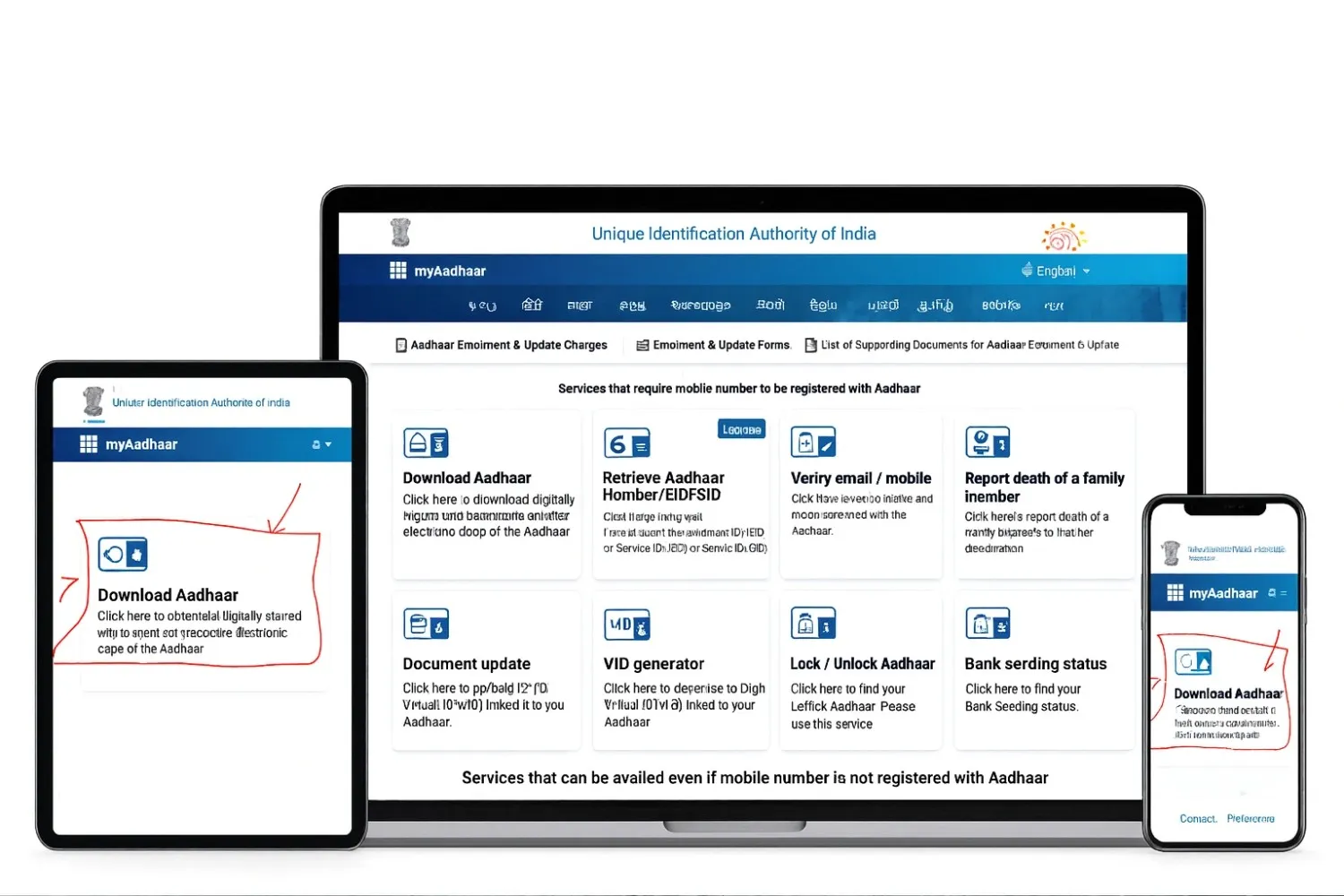
Your Aadhaar is more than an identity card — it is your key for banking, SIM verification, travel, and government benefits in India.
Waiting for the physical Aadhaar card to arrive can take weeks, but the e-Aadhaar is legally valid and instantly downloadable.
Whether your card is lost, delayed, or you simply need a digital Aadhaar copy, this step-by-step guide shows you how to download Aadhaar online in under 2 minutes.
⭐ e-Aadhaar
The e-Aadhaar is a password-protected digital version of your Aadhaar card that is digitally verified by UIDAI and contains the same information available on your physical Aadhaar, including your name, address, date of birth, gender, Aadhaar number, and photograph.
Important e-Aadhaar details
Download formats
- Regular Aadhaar – shows the complete 12-digit Aadhaar number.
- Masked Aadhaar – hides the first eight digits for better privacy and shows only the last four.
PDF password
Your e-Aadhaar is downloaded as a PDF file and is password protected. The password is:
First four letters of your name in CAPITAL + your birth year (YYYY)
Example: For Priya born in 1990 → PRIA1990
Important: Under the Aadhaar Act 2016, the e-Aadhaar is legally valid and accepted across India for identity, address verification, subsidies, and other government-related services.
Prerequisites for e-Aadhaar
Before you begin, ensure you have the following:
Important prerequisites
What you need before downloading e-Aadhaar
-
Aadhaar Number (UID), Virtual ID (VID), or Enrollment ID (EID):
- 16 digit Virtual ID number (VID)
- 12 digit Aadhaar number (UID)
- 28 digit EID (14 digit Enrollment number + 14 digit timestamp)
This is essential for any new Aadhaar card download.
- Registered Mobile Number: Your linked mobile number will be used for OTP verification. Email can also be used for DigiLocker login.
- Working Internet Connection: You need a stable internet connection to access the UIDAI website and download Aadhaar card online.
- PDF Reader: A PDF reader or in-browser PDF viewer to open your downloaded e-Aadhaar.
Note: Make sure that your mobile number is registered with UIDAI; otherwise, you will need to visit an Aadhaar Seva Kendra (ASK) for further assistance.
Different Ways to Download Aadhaar Card
There are different ways to download your Aadhaar Card depending on the information you have available.
1) How to download Aadhar card online using UIDAI website?
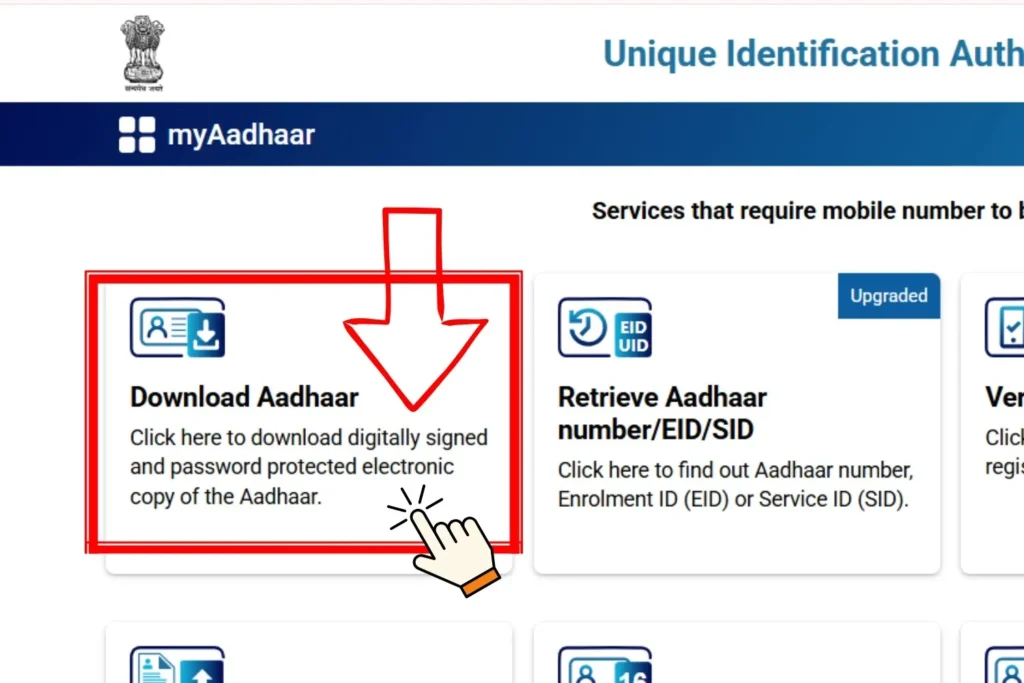
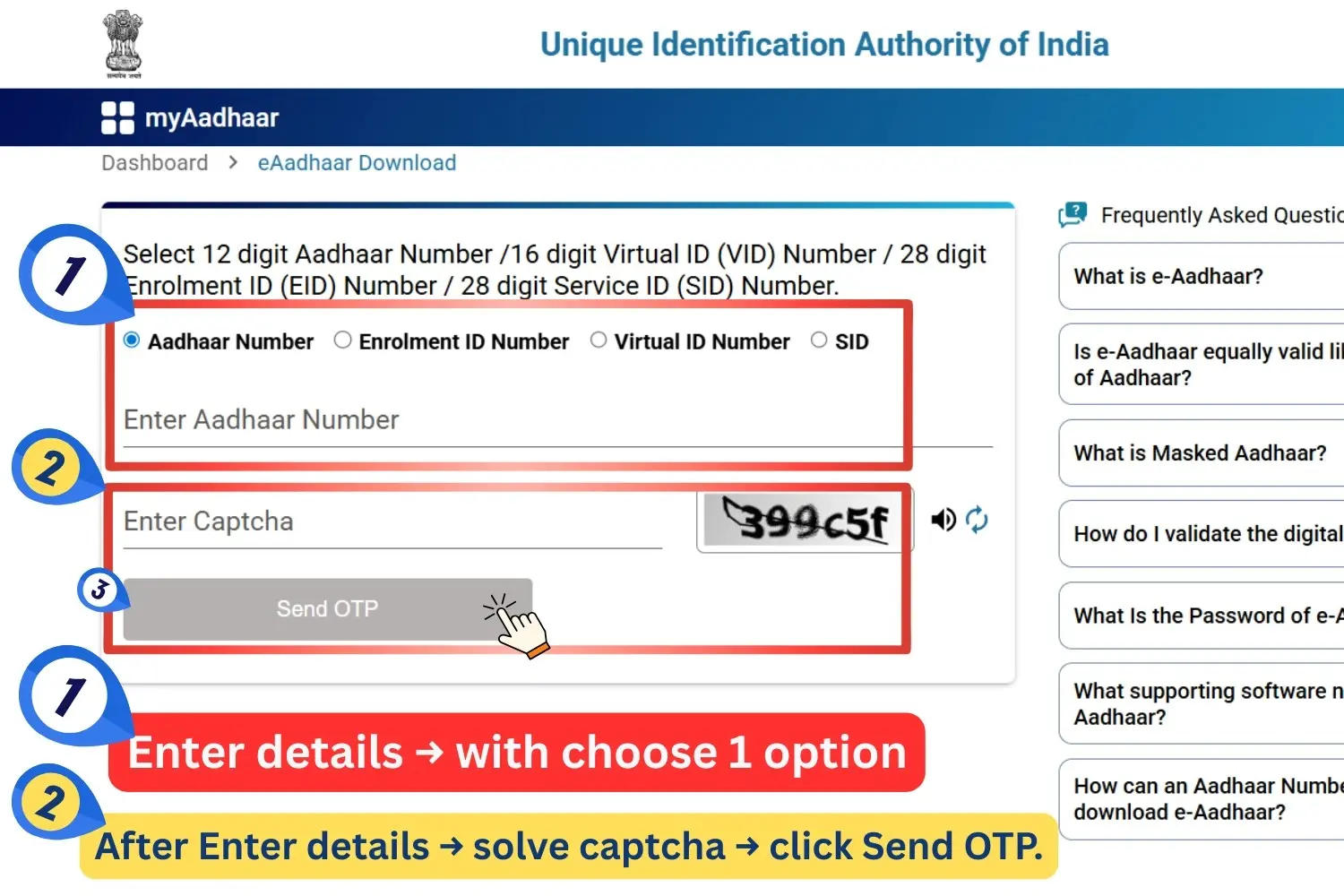
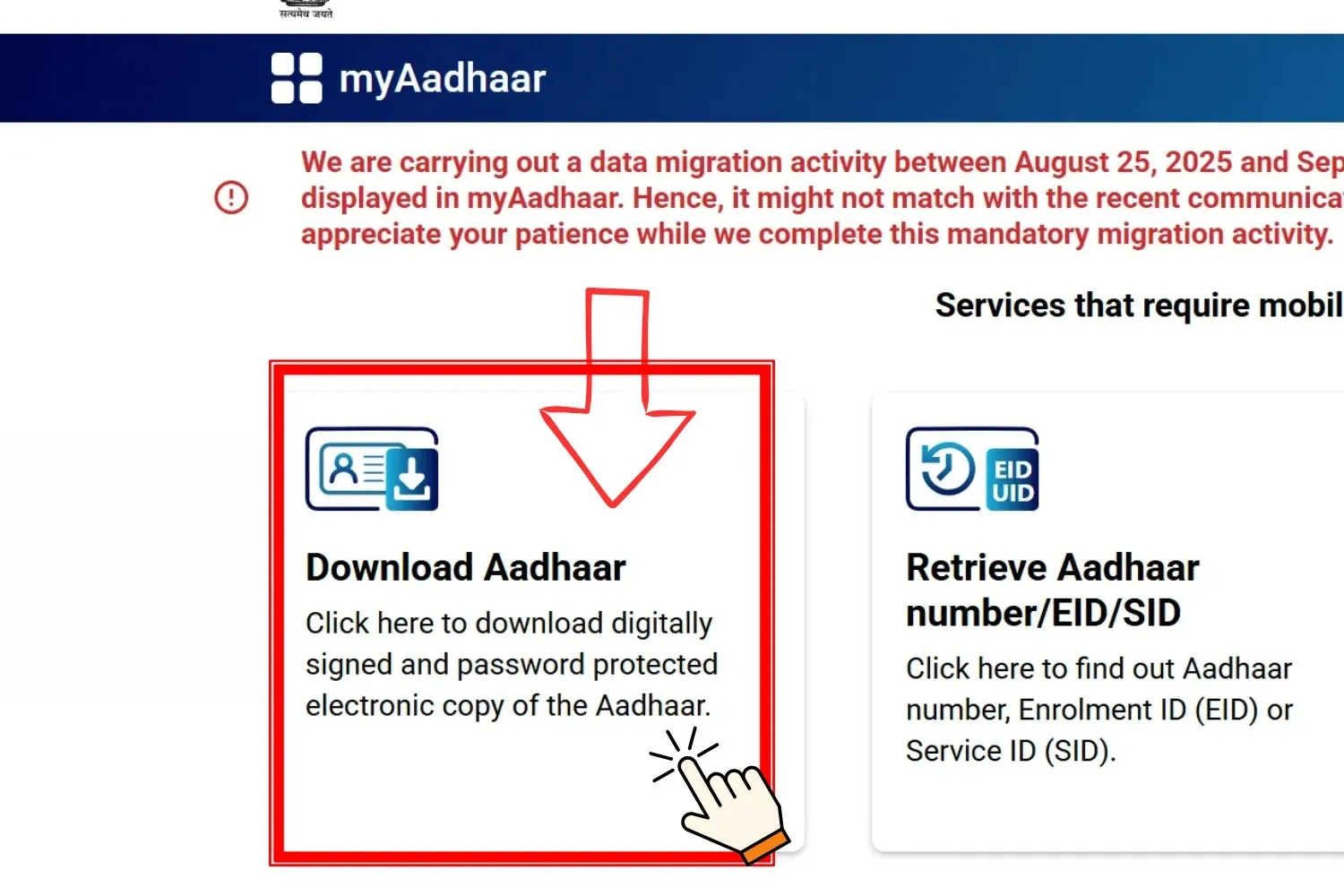
The most used method to download the Aadhaar card is the UIDAI myAadhaar portal. To know how to download Aadhar card online, follow these steps:
Important Note
The e-Aadhaar will contain the latest information if you have recently updated the information.
2) Downloading from myAadhaar Mobile App (UIDAI)
You can carry your digital Aadhaar Card on your smartphone. The application is made by UIDAI and is available on both Play Store (Android) and App Store (iOS).
3) How to download Aadhaar from DigiLocker?
DigiLocker is a cloud-based service that contains UIDAI integration for Aadhaar services. Follow these steps to learn how to download e Aadhar card using DigiLocker.
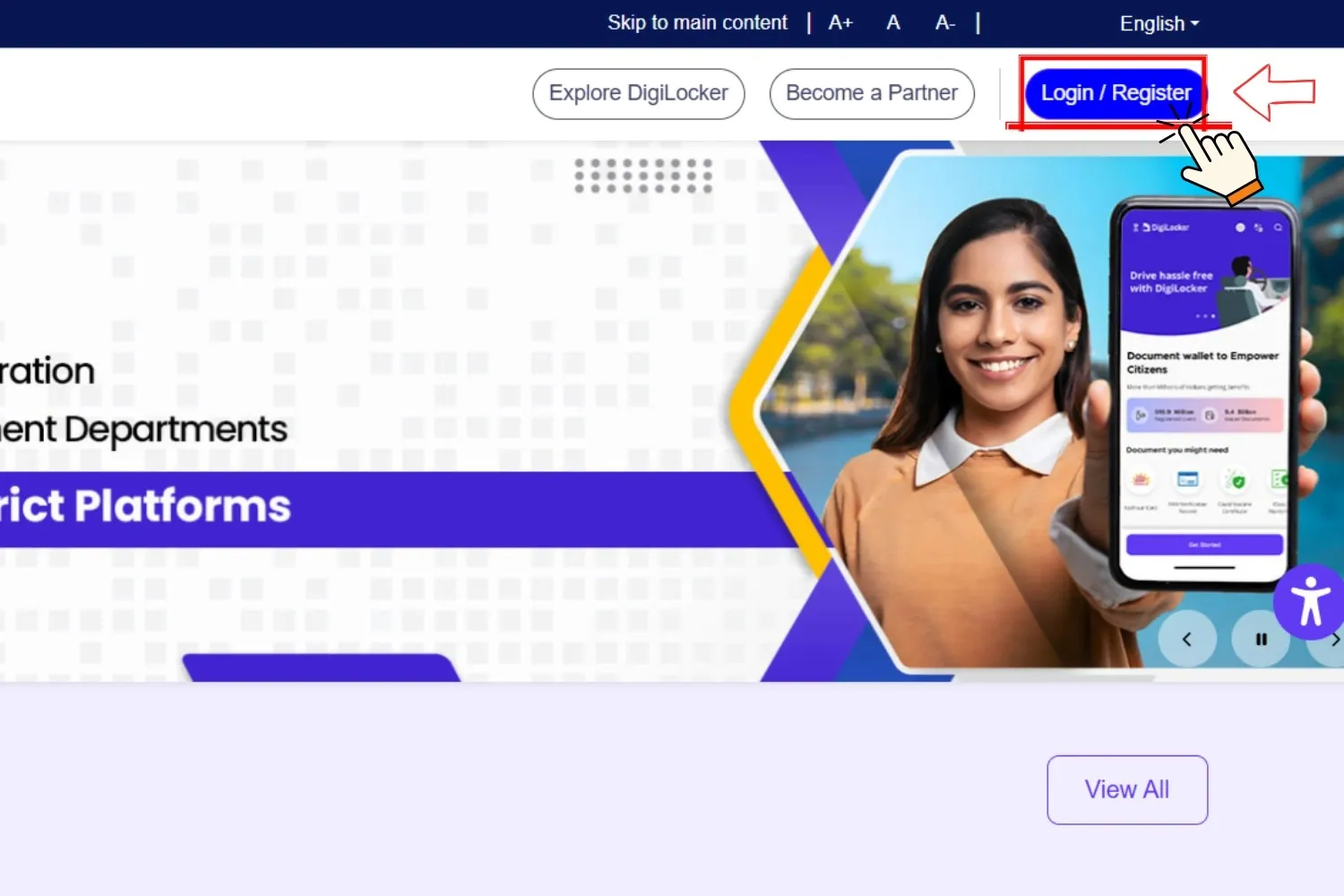
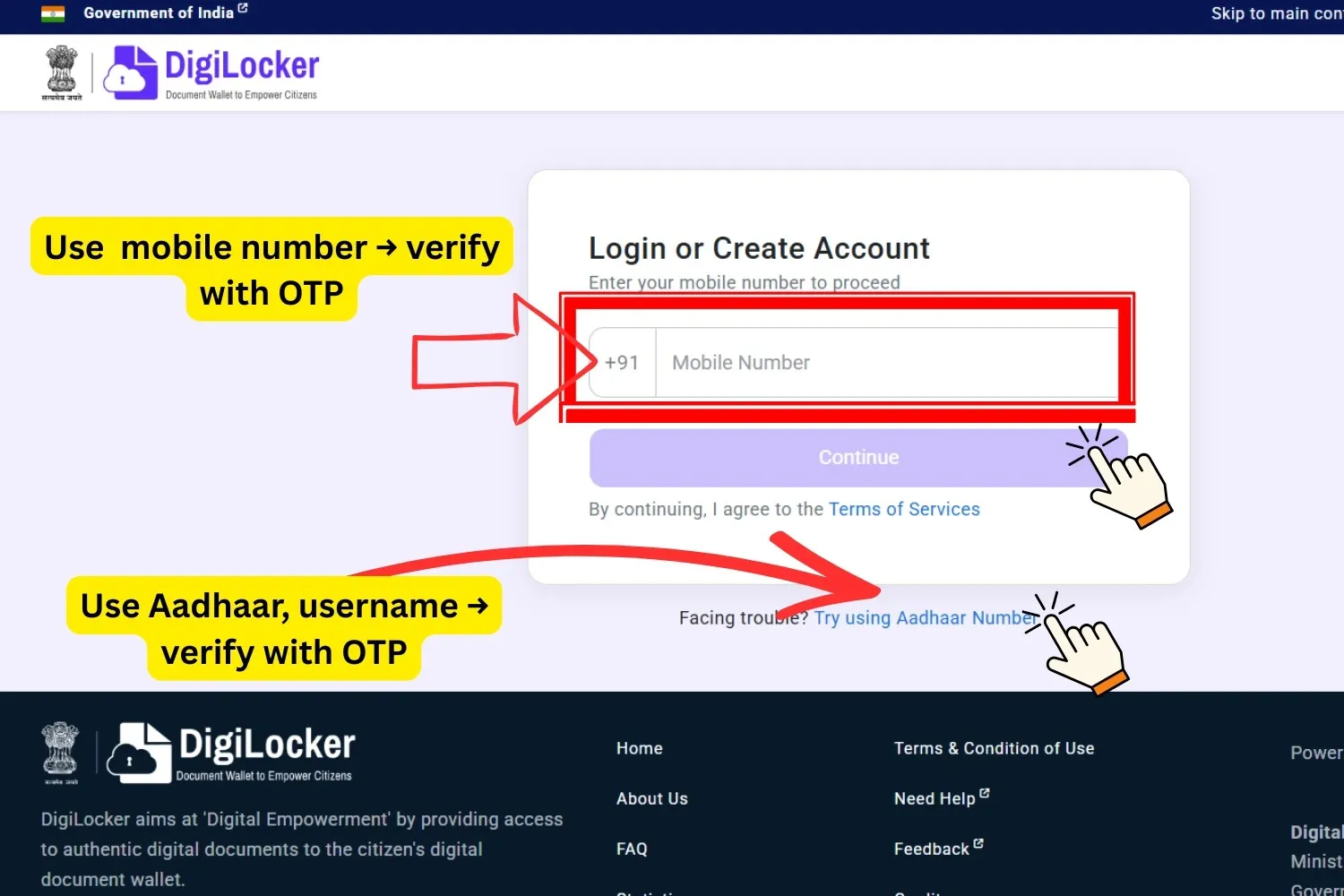
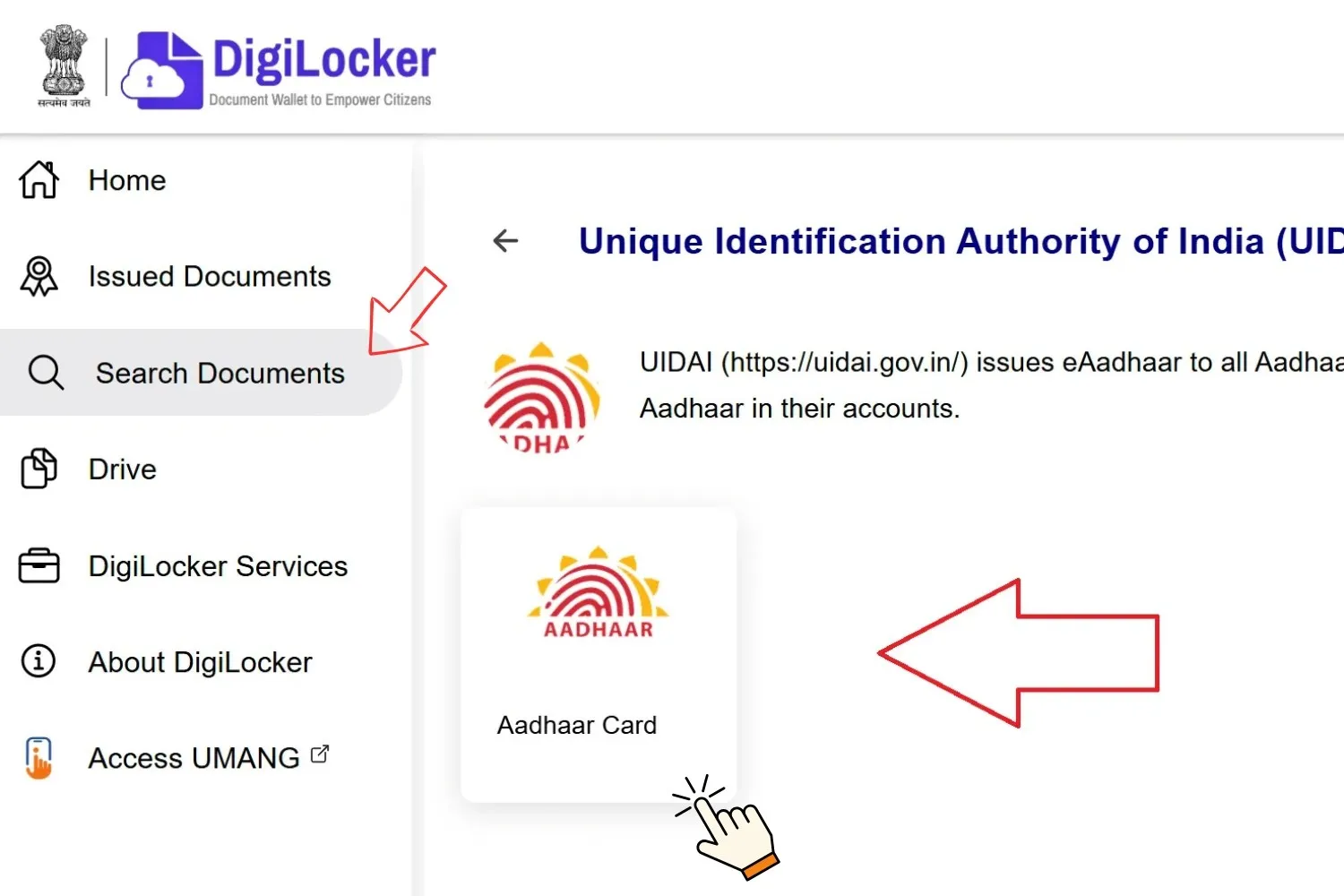

e‑Aadhaar via DigiLocker Security & Convenience
You can store your Aadhaar securely on DigiLocker (https://digilocker.gov.in). Once linked with Aadhaar and OTP verified, you can:
- Download e‑Aadhaar PDF directly.
- Access it anytime
- Share digitally for verification (soft copy or QR code), reducing risk associated with physical copies.
4) Aadhaar Card Download by Name and Date of Birth
You can use your date of birth and mobile number in case you have forgotten your Aadhaar number.
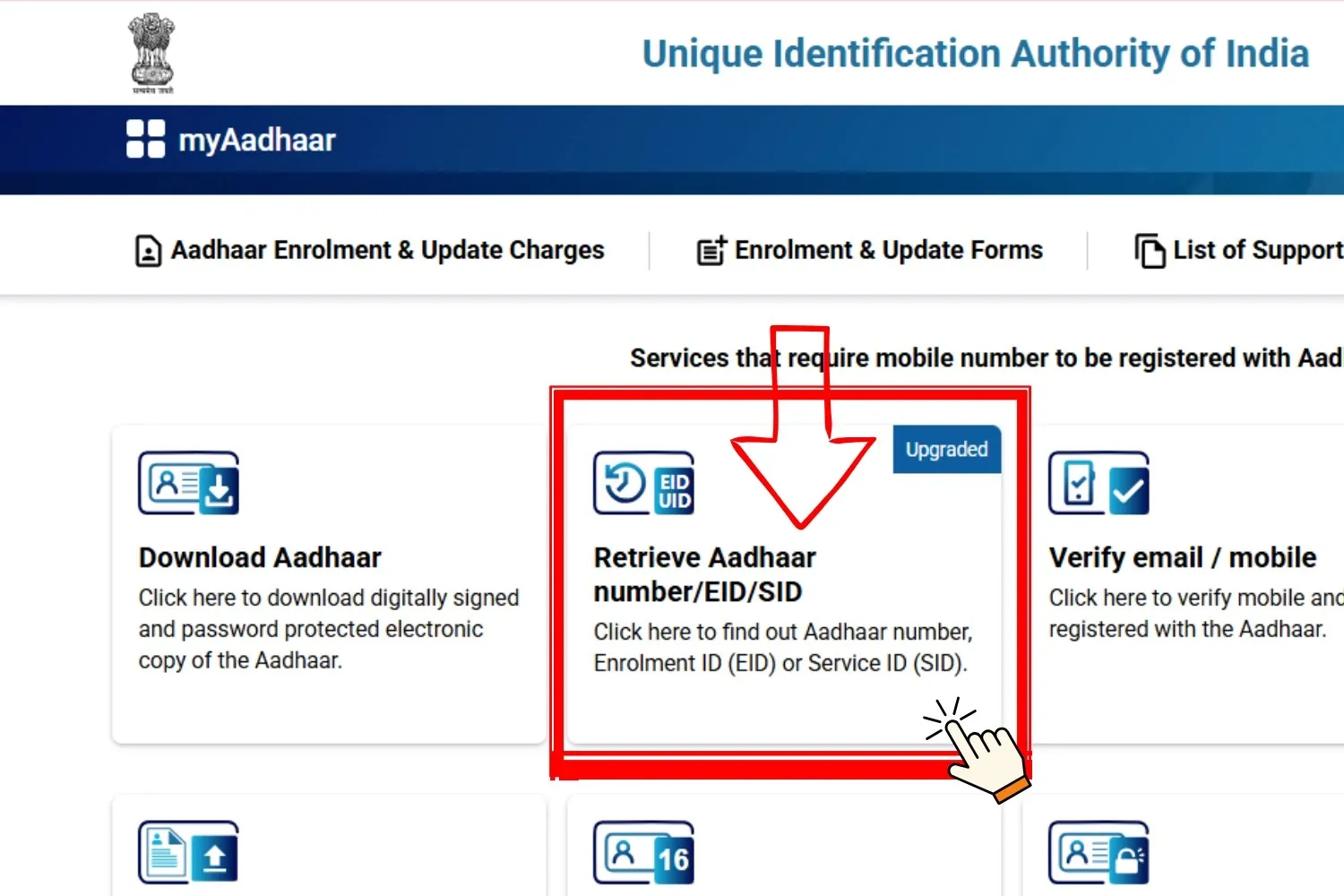
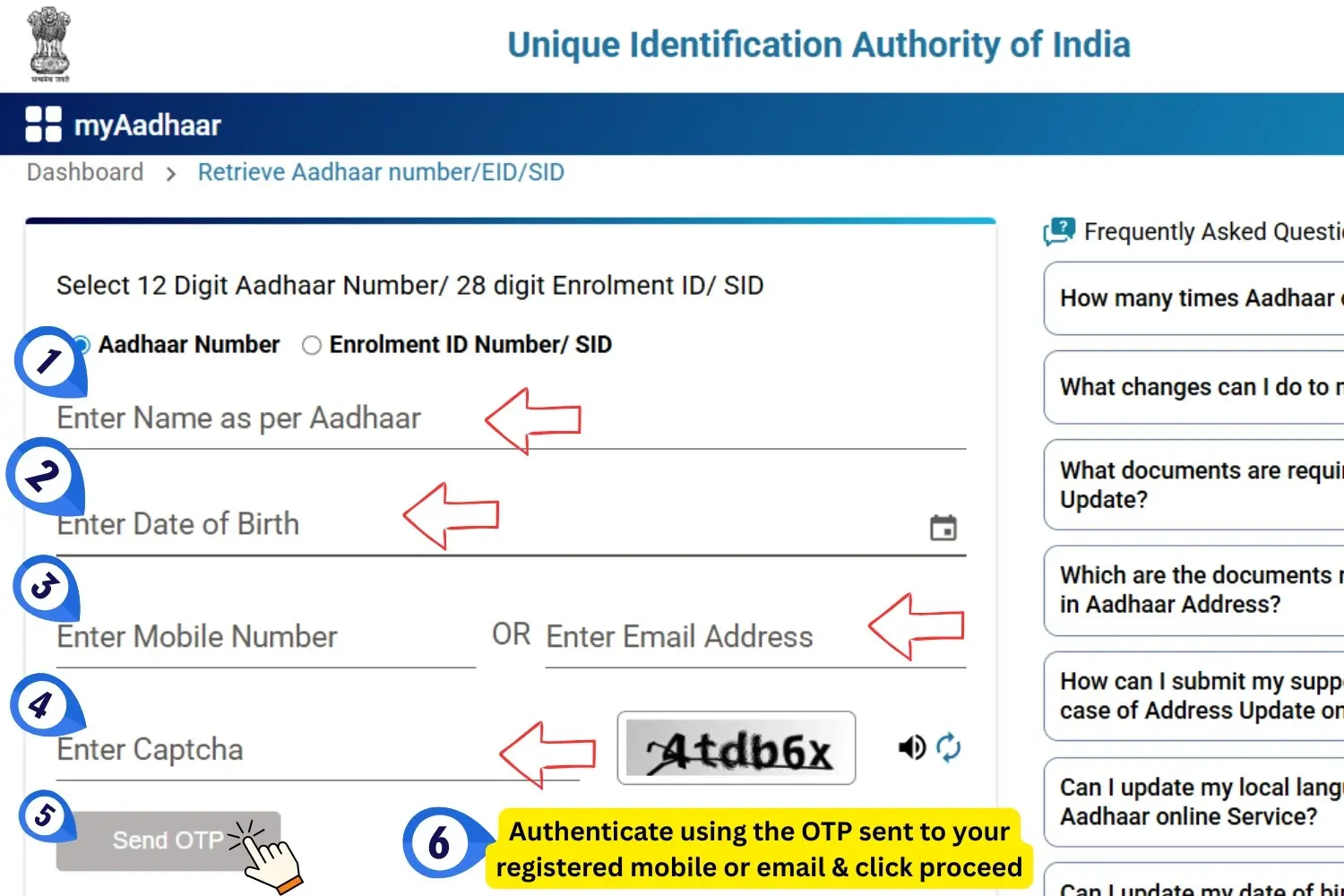
5) ⭐ Download Aadhaar Without Registered Mobile Number (No OTP Required)
If your mobile number is not linked with Aadhaar, you cannot download the e-Aadhaar online because OTP verification is mandatory. In this case, you must visit an Aadhaar Seva Kendra (ASK) or Permanent Enrolment Centre (PEC) to retrieve or print your Aadhaar offline.
How to Get Aadhaar Without Mobile OTP
What You Receive
⭐ Why Offline Aadhaar Retrieval Matters
Printing e-Aadhaar
6) ⭐ Printing Your e-Aadhaar (With PDF Password Examples)
Once you download your e-Aadhaar, you can print it for physical use just like the original Aadhaar card.
How to print your e-Aadhaar
- Open the PDF: Use a PDF reader such as Microsoft Edge or Adobe Acrobat.
- Enter the password: The password format is: First four letters of your name in CAPITAL + Birth Year (YYYY)
- Print the card: Click “Print”, select the number of copies, and print normally.
Is printed e-Aadhaar valid?
Yes — the printed e-Aadhaar is legally valid and can be used for identity verification, KYC, banking, travel, SIM activation, and all government services across India.
Aadhaar PDF password examples
| Name | Birth Year | PDF Password |
|---|---|---|
| Nandi | 1996 | NAND1996 |
| Sunil | 1998 | SUNI1998 |
| Yashviraj | 1995 | YASH1995 |
| Kishore | 1998 | KISH1998 |
| Meera | 1990 | MEER1990 |
Tip: Use only the first four letters of your name in CAPS, even if your full name is longer.
Benefits of e‑Aadhaar
Masked Aadhaar Card
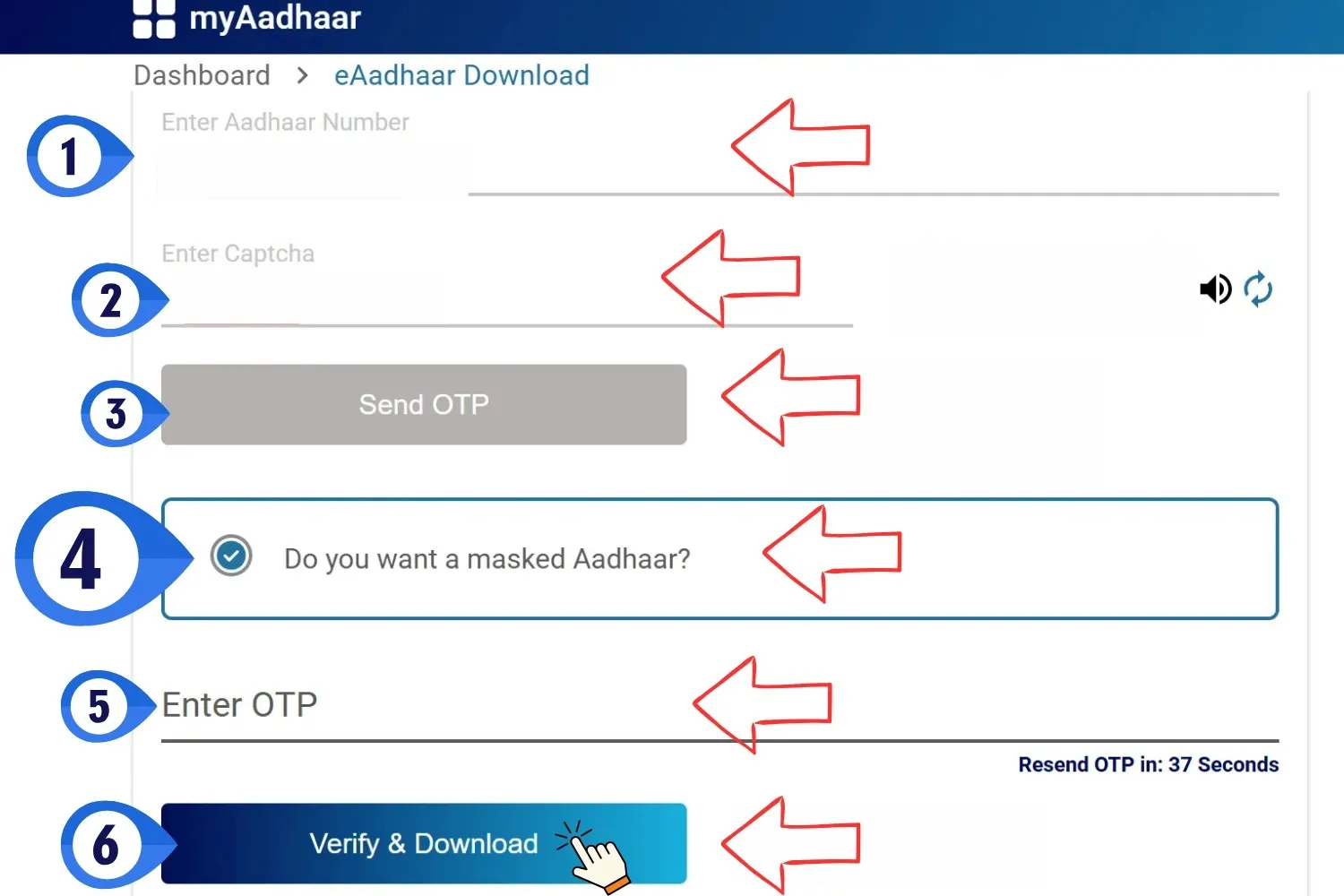
For added privacy, there is an option for a Masked Aadhaar card where only the last four digits of the Aadhaar Card number are displayed. This is useful for KYC or rentals where you need to verify your ID without revealing your full UID. Masked Aadhaar can be used for all KYC purposes except biometric authentication at certain centers.
Features
Downloading Masked Aadhaar from myAadhaar Portal
To download the masked Aadhaar card, follow these steps:
Need help? For further queries contact UIDAI helpline 1947 or visit the nearest Aadhaar Seva Kendra (ASK).